Uploading Your Logo - Product Customization
Online · Written guide Content date 1 min read
If you have purchased product customization, Tax Processors Plus Online allows you to upload your logo to display in your Tax Processors Plus Online Office and/or Account Hub.
To upload your personal logo:
- Log in to Account Hub and select Product Customization from the left side menu.
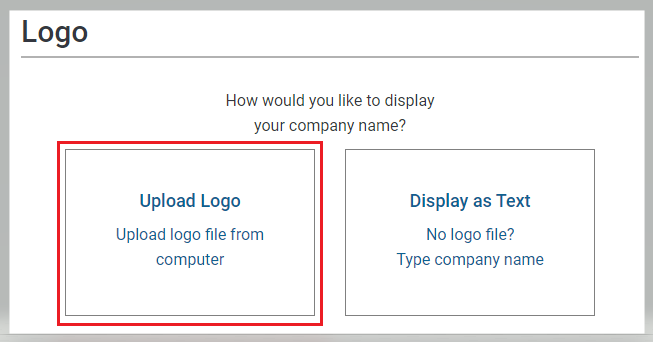
- Select Upload Logo:
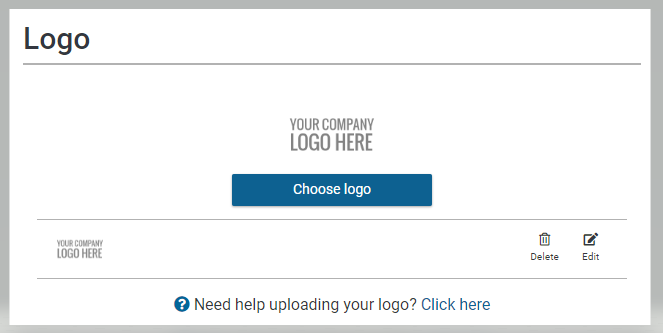
- Click the "Choose logo" button:
- A dialog box will display prompting you to select a file. Browse to the location where your logo file is stored. Select your logo file and click "Open".
- Size the image by dragging your mouse to outline the logo. Move the points of your selection in or out until you are satisfied with the sample image displayed on the screen.
- Click the Crop button.
- Your logo will appear under the Logo section of the page. If you need to make changes to the size of your logo, click the Edit button.
- When you are satisfied with your changes, select the Save button at the bottom of the page.
If you need assistance uploading your logo, please contact Tax Processors Plus Online Customer Support at (855) 698-0691.