Troubleshooting Refund Advantage Advance Option Not Available in a Return
Desktop · Written guide Content date 2 min read
If you don't see the option to select an advance loan when using Refund Advantage to facilitate the refund transfer, check the following items:
1. You have not been approved to offer advance loans by Refund Advantage.
To see if you've been approved to offer advances, log in to your Tax Processors Plus Desktop Account Hub. Once logged in, locate the Banking Information tile and click Refund Advantage.
- If you are approved for advance loans and also to offer pre-ack advance loans, your approval status will show "Advances and Pre-Ack Available".
- If you are approved to offer advance loans only, your approval status will show "Advances Available".
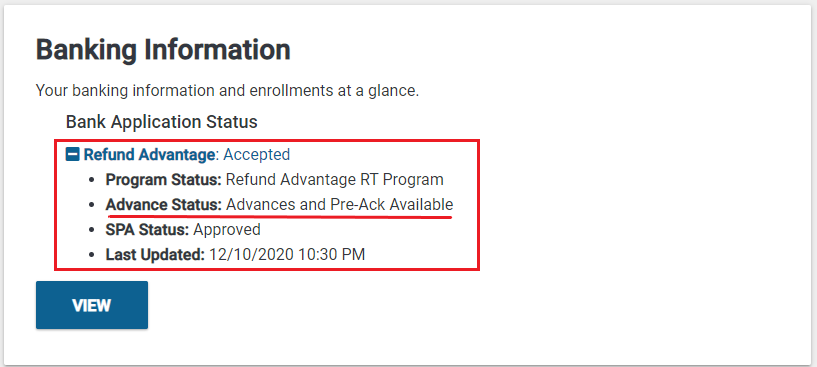
2. You did not opt in to offer advance loans in your ERO enrollment application.
If you didn't request to offer advances when you submitted the application the first time, you can resubmit it with that option selected.
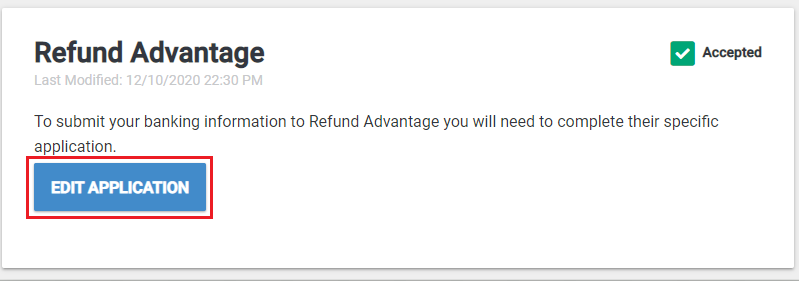
To check your bank application to see if you requested to offer advances, log in to your Tax Processors Plus Desktop Account Hub and click the View button in the Banking Information tile:
Under Refund Advantage, click Edit Application:
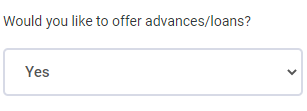
Select the Additional Information step and verify your answer to the question "Would you like to offer advances/loans?". If it's set to No, change it to Yes:
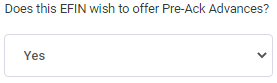
Also indicate if you'd like to offer pre-ack advances:
When finished, re-submit the application to Refund Advantage. If and when you are approved to offer advances and pre-ack advances, you'll see that in the Banking Information tile in Account Hub.
3. You have not selected the option to offer advance loans in the Bank Setup Menu Configuration.
To access the Bank Setup Menu, from the Quick Menu of Tax Processors Plus Desktop select:
- Configuration
- Electronic Filing / Bank Setup
- Bank Setup Menu
-
Can Offer Advances - Ensure this is set to YES:
Illustration
The illustration for this step is not available yet. Follow the written instructions.
If it's not set to YES and you aren't able to set it to YES, then you are not (or not yet) approved to offer advances.
4. Your EFIN is not entered correctly in the Electronic Filing & Bank Setup Menu.
To access this menu, from the Quick Menu of of Tax Processors Plus Desktop select:
- Configuration
- Electronic Filing / Bank Setup
-
Transmitters EFIN - Verify that the EFIN entered is correct:
Illustration
The illustration for this step is not available yet. Follow the written instructions.
Additional Information: