Where do I get the Referral Link for my Branded TaxesToGo App?
Software reference · Written guide Content date 2 min read
The Referral Link for the branded TaxesToGo app is available in your Account Hub.
To get the link, log in to Account Hub, locate the TaxesToGo tile, and click View.
The Referral Link is located in the TaxesToGo Company Profile:
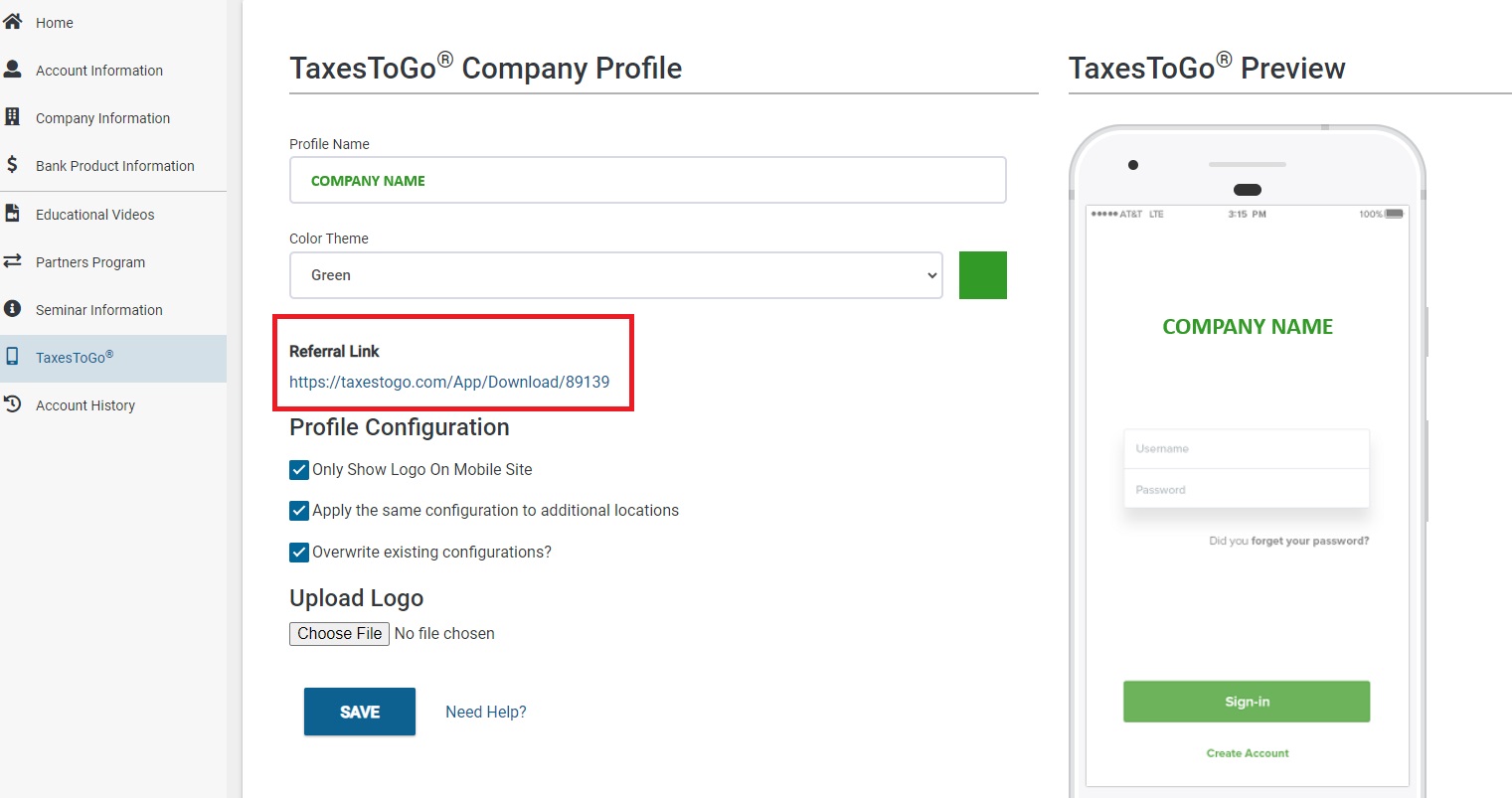
The Referral Link will not show if your profile setup is incomplete:
- Profile Name - Enter your name or your company name
- Color Theme - Choose from six color themes
- Only Show Logo On Mobile Site - Check the box for the app to show your logo only and not the Profile Name.
- Apply the same configuration to additional locations - If you have multiple locations indicated in the Account Hub Location Manager, check this box if you wish to apply this profile to all locations. Leave it unchecked to allow each location to customize their own profile.
- Overwrite any existing configurations? - Check the box to overwrite existing the TaxesToGo configuration in your additional locations.
- Upload Logo - Select Choose File to upload your company logo (JPG, GIF, or PNG formats.)
- Click SAVE.
Pro Tip: Click the Referral Link to open the webpage and download the app to your own phone to test the app and see how it works.
For Additional Locations
If your tax business has multiple locations, you will need to set up the TaxesToGo configuration for each office unless you have chosen to apply the same configuration to all locations. The Referral Link from the TaxesToGo configuration above is only for your main office. To set up configuration for each of your additional locations, go into Location Manager and choose Manage Locations. From the list of locations, you will see a phone icon. This will open that location's TaxesToGo configuration screen.
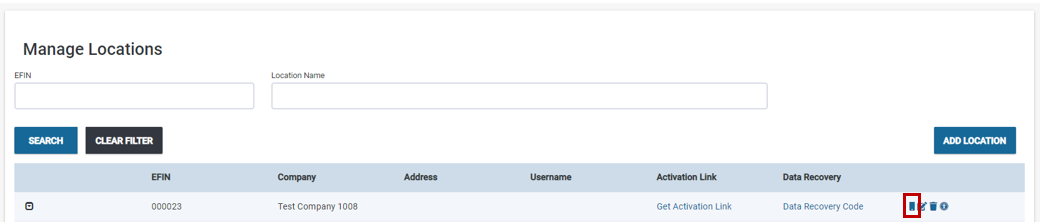
The configuration screen for each additional location will look exactly like the screen from your main location. Once you've clicked SAVE, that office's Referral Link will be generated.
Additional Information:
Downloads
Downloads for this guide are not available yet. Links will appear when the files are ready.
- Taxes to Go for Preparers - Desktop.pdf — TPP edition pending