Partner Information Isn't Printing in Section K and/or Section L of Form 1065 K-1
Software reference · Written guide Content date 1 min read
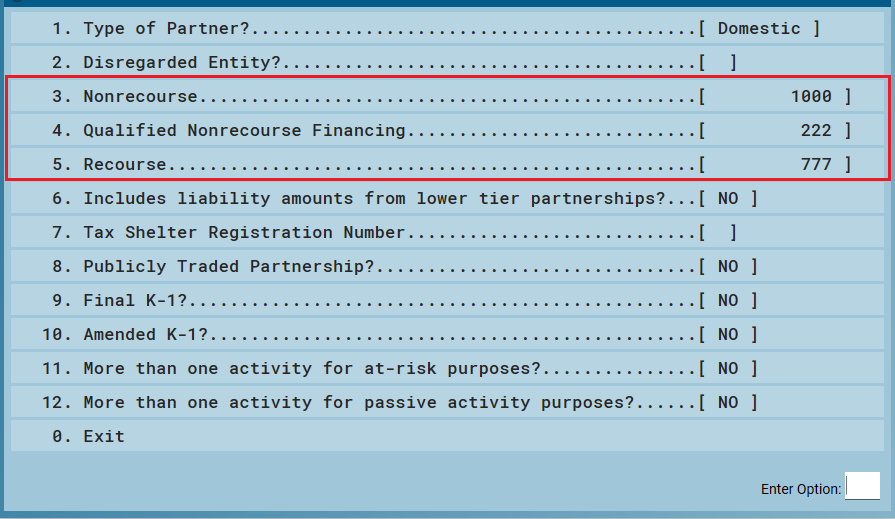
Section K - Partner's Share of Liabilities: If the partner's share of liabilities is not printing in section K of the partner's K-1, make sure that the information has been entered in the partner's K-1 menu. From the main menu of the partnership return, select:
- Schedule K - Distributive Share Items
- Schedule K-1 Input
- Select the partner from the list
-
Other Information - Ensure that entries have been made in the menu for Nonrecourse, Qualified Nonrecourse Financing and Recourse:
Section L - Partner's Capital Account Analysis: If the amounts in the partner's capital account analysis are not printing in Section L of the partner's K-1, make sure that the information has been entered in the partner's K-1 menu. From the main menu of the partnership return, select:
- Schedule K - Distributive Share Items
- Schedule K-1 Input
- Select the partner from the list
-
Analysis of Partner's Capital Account - Ensure that entries have been made in the menu:
Illustration
The illustration for this step is not available yet. Follow the written instructions.
If the entries have been made, but the figures aren't printing in Section L of the partner's K-1, make sure that you have marked Section L to print if it is not required. From the main menu of the Partnership return (Form 1065), select:
- Schedule B - Other Information
- Does This Partnership Meet All Four Requirements? - When this is marked yes, Schedule L, Schedule M-1, Schedule M-2 and Section L of the K-1 are not required to be printed. Change the option Print Schedule K-1 Section L to Yes If the partnership meets all four requirements.
Additional Information: