Restore the desktop software shortcut
Desktop · Written guide Content date 1 min read
On this page
If the Tax Processors Plus Desktop shortcut icon has disappeared from your computer's desktop, here are some steps to try.
Refresh the desktop
Sometimes the icon is temporarily hidden on the Windows desktop. Right-click on a blank area of the desktop and select Refresh to see if the icon reappears.
Create a new shortcut
Click here for instructions on how to recreate the Tax Processors Plus Desktop shortcut.
Is the shortcut visible but not working?
Right-click the desktop shortcut and click Open, or double-click it. If Tax Processors Plus Desktop doesn't open, check the status of the Tax Program Service in Task Manager:
- Open Task Manager. There are several ways to do this:
- Press CTRL + Alt + Delete, then choose Task Manager.
- Right-click the Windows Start Menu, then choose Task Manager.
- Right-click the Windows task bar at the bottom and choose Task Manager.
- Click the Services Tab. (If you don't see the Services tab, click More Details at the bottom)
- Locate Tax Program Service 20xx (xx being the program year).
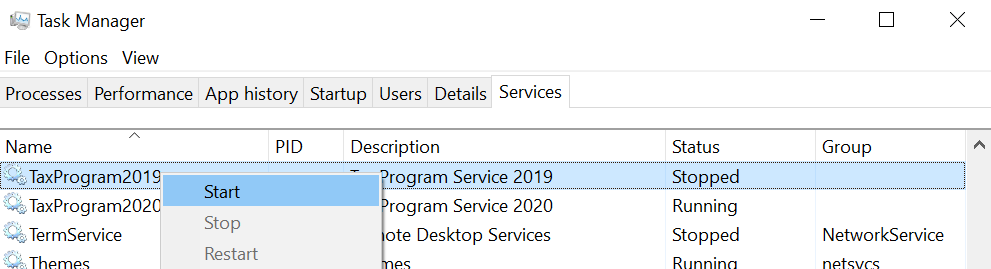
- What to do next depends on the service's status:
- Stopped - Right-click the service and choose Start.
- Running - Right-click the service and choose Restart.
- Starting - If it's stuck on this, restart the computer. If it remains in Starting status after having restarted, call us for technical support.
If an error message shows while launching the program or the program simply doesn't launch, contact Tax Processors Plus Desktop Support at (855) 698-0691 or email info@lc.taxprocessorsplus.com for further assistance.