Clearing Cache in a Browser
Software reference · Written guide Content date 3 min read
On this page
Clearing browser cache often fixes issues with a web page not loading properly or various error messages on a website. This guide explains how to clear the browser cache in Google Chrome, Microsoft Edge, and Mozilla Firefox on a Windows PC, and Safari on a Mac.
Google Chrome (Windows)
Quick method
In Windows, with the Tax Processors Plus Online tab showing, select Ctrl-F5.
Long method in Windows
- In Google Chrome, select the three-dot menu in the top right corner:

- Locate History in the menu and click the option that appears, also titled History:

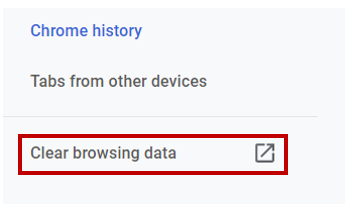
- On the page that appears, select Clear Browsing Data from the left-hand side:
- In the "Clear browsing data" window, ensure the check box for Cached images and files is checked. Select "All time" for the time range and click Clear data.
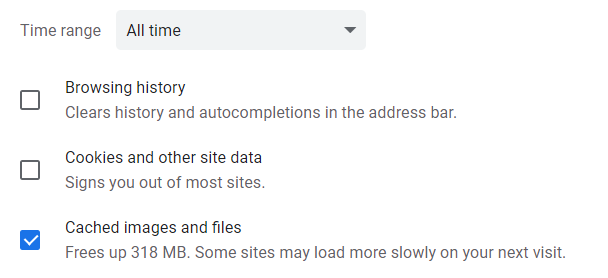
Note: You do not need to clear browsing history or cookies.
Microsoft Edge
Quick method
In Windows, with the Tax Processors Plus Online tab showing, select Ctrl-F5.
In macOS, select Cmd + Shift + R.
Long method in Windows
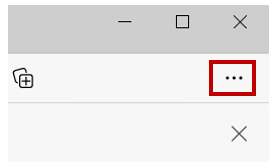
- In Microsoft Edge, click the three-dot menu in the top right corner:
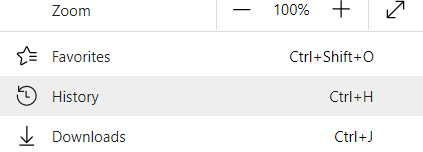
- Locate History in the menu and select it:
- In the History tab, click its three-dot menu at the top and choose Clear browsing data
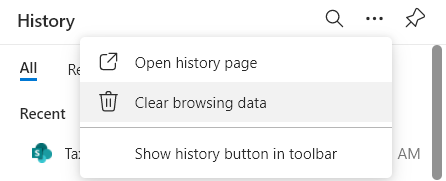
- In the "Clear browsing data" window, ensure the check box for Cached images and files is checked. Select "All time" for the time range and click Clear now.
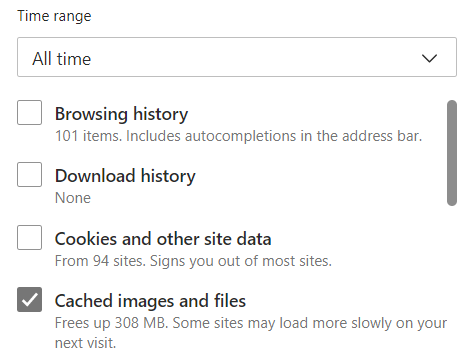
Note: You do not need to clear browsing history, download history, or cookies.
Mozilla Firefox
Quick method
In Windows, with the Tax Processors Plus Online tab showing, select Ctrl-F5.
In macOS, select Cmd + Shift + R.
Long method
- In Mozilla Firefox, select the "hamburger" menu icon shown in the top right corner:

- Find the Settings tab and select it.
- Find the Privacy & Security Panel tab and select it.
- This will bring up a new menu. Under the section Cookies and Site Data, select Clear Data.
- In the Clear Data window, ensure the check box for Cached Web Content is checked, then click Clear.
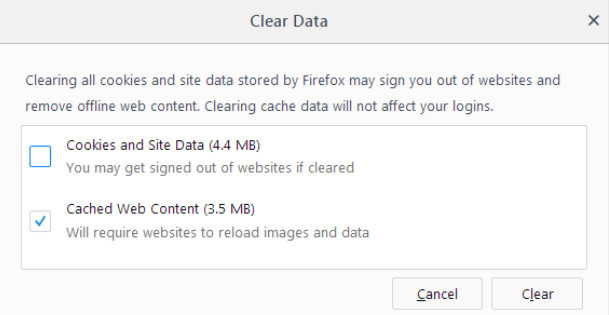
Note: You do not need to clear cookies and site data.
Google Chrome (macOS)
Quick method
With the Tax Processors Plus Online tab showing, select Cmd + Shift + R.
Long method
- In Google Chrome, select the three-dot menu in the top right corner:
- Locate More Tools in the menu and select Clear Browsing Data.
- On the Clear browsing data window, select "All time", then select Clear data.
Note: You do not need to clear browsing history or cookies.
Safari (macOS)
Quick method
With the Tax Processors Plus Online tab showing, select Cmd + Shift + R.
Long method
If you don't see the Develop menu in the menu bar, do the following:
- In the Safari menu bar select Safari, then Settings.
- Select the Advanced tab and check the box next to "Show features for web developers".
- You should now see the Develop menu.
Select the Develop menu, then select Empty Caches for All Profiles.
Internet Explorer
1995 called. They want their browser back.