How to Find Specific Forms in a Return
Desktop · Written guide Content date 1 min read
On this page
In Tax Processors Plus Desktop you can search for specific federal and state forms by using the Form Finder.
Searching within a federal return
- Open the tax return.
- Locate Form Finder at the bottom of the left side navigation menu.
- Enter the form number in the Search by tax form field. As you type, the list will filter to the forms that match what you have entered:
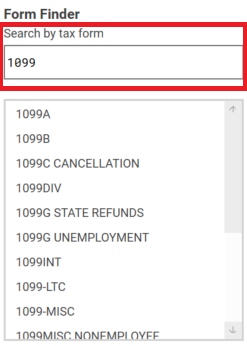
- Double-click the desired form in the list to select it. In some cases, the entry will take you to a menu the form is under rather than directly to the form itself.
Searching within a state return
- Open the state tax return.
- Click the Form Finder icon in the tool bar at the top:
- Enter the form number or title to filter the list, or scroll through the list and select it:
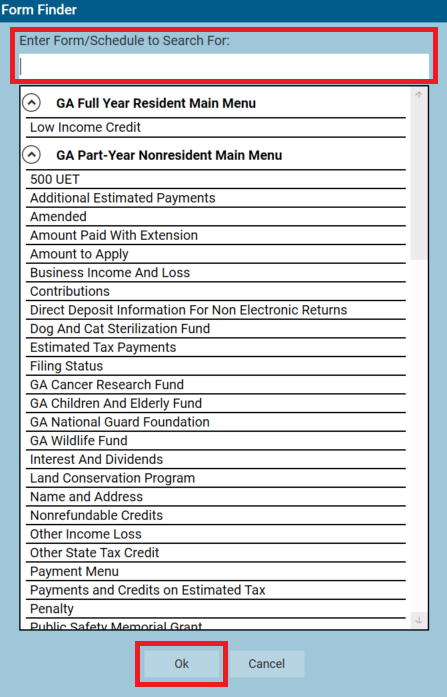
- To select form, double-click it, or single-click to select it, then click Ok.
If you don't see the Ok button, maximize the Tax Processors Plus Desktop program.
Note: Some forms are generated as needed based on the information entered in the tax return. To assist with return accuracy, these forms are usually not listed in the Form Finders.
Additional information: