Account Hub Client Status
Account Hub · Written guide Content date 2 min read
Tax Processors Plus or Tax Processors Plus Online users can check the status of their clients' e-filed tax returns on the web via their Account Hub.
The first step is to log in to Account Hub here.
Next, click the 9-square App Switcher menu in the top right corner of the page next to your Account Hub username, then select Client Status:
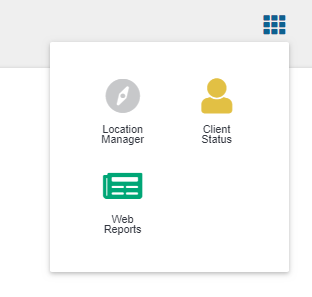
At the Client Status website, click Lookup Tax Returns.
In the Customer Lookup window, first indicate the type of return and the tax year:
-
Return Type - This is a button, showing either
Individual orBusinessClick the button to toggle between them. - Tax Year - The current tax year is selected by default. Click to change to a prior year if needed.
Individual - There are five ways to search for an individual tax return. Enter the information needed for each way, then click the green Search button:
- EFIN + 4 SSN - Enter your EFIN, and in the next field enter the last four digits of the SSN.
-
Last Name - Enter the last name and click the desired return in the resulting list.
(This field is not case sensitive, so you can type upper- or lower-case.) - Primary SSN - Enter the 9-digit taxpayer SSN.
- Submission ID - Enter the 20-digit submission ID number.
- Return ID - For Tax Processors Plus Online returns only, enter the 32-character Return ID.
Business - There are three ways to search for a business return. Enter the information needed for each way, then click the green Search button:
- EFIN + 4 EIN - Enter your EFIN and the last four digits of the EIN.
- EIN - Enter the 9-digit EIN.
- Submission ID - Enter the 20-digit submission ID number.
When finished entering the information about the return you wish to examine, click the green Search button. If a matching return is found, you'll see a link to it. Click the link to show the return's filing status and other information.
If you need to print the information to paper or PDF, right-click the web page and choose "Print...", and select the destination as appropriate.