How To Restore The Tax Processors Plus Desktop Shortcut
Desktop · Written guide Content date 3 min read
On this page
If the Tax Processors Plus Desktop shortcut is missing from your Windows desktop, this article explains how to restore it. The process involves three steps:
- Creating the desktop shortcut
- Changing the shortcut icon to the Tax Processors Plus Desktop logo
- Changing the name of the shortcut
Note: These instructions assume Tax Processors Plus Desktop is installed on the C: drive.
Create the desktop shortcut
1. Right-click the Windows Start menu and choose File Explorer. For most Windows installations the Start menu is in the lower left corner of Windows.
2. Navigate to the Tax Processors Plus Desktop folder for the program year you need to restore:
- This PC
- Local Disk (C:)
- Tax Processors Plus Desktop
- 20xxNET where XX is the 2-digit year
3. Locate the application TaxProgram (or TaxProgram.exe, however it is displayed for you). There are many file names that start with the word "TaxProgram", but only one of them is an application.
Illustration
The illustration for this step is not available yet. Follow the written instructions.
Note: If you don't see the TaxProgram application, stop. You need our technical support team to assist you in restoring the program. Call us at (855) 698-0691.
4. Right-click TaxProgram, choose "Send to", then "Desktop (create shortcut).
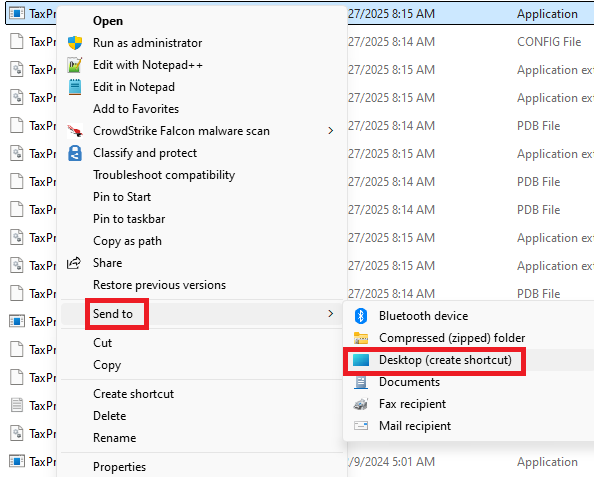
You now have on your Windows desktop a shortcut that looks like this:

At this point you've created the shortcut and it can be used to open Tax Processors Plus Desktop, but it doesn't show the Tax Processors Plus Desktop logo nor does it indicate what year it's for, so the remaining instructions will fix those two things to make the shortcut look like the original.
Change the shortcut icon
5. Right-click the newly-created desktop shortcut and choose Properties.
In the Shortcut Properties window, click "Change Icon...":
Illustration
The illustration for this step is not available yet. Follow the written instructions.
Windows will display this message:
Illustration
The illustration for this step is not available yet. Follow the written instructions.
7. Click OK, then in the next window click "Browse...":
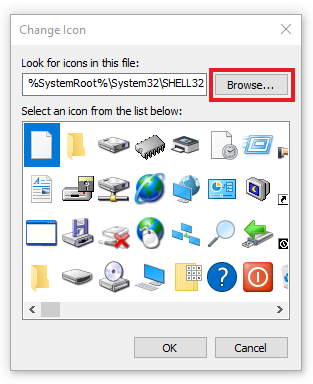
8. A Windows File Explorer window will open. Navigate to these folders:
- This PC
- Local Disk (C:)
- Tax Processors Plus Desktop
- 20xxNET where XX is the 2-digit year
- IconImages
Double-click the file Tax Processors Plus Desktop.ico (or single-click it, then click Open).
Illustration
The illustration for this step is not available yet. Follow the written instructions.
9. Click OK to complete the process of selecting the shortcut icon:
Illustration
The illustration for this step is not available yet. Follow the written instructions.
Change the shortcut name
10. In the Shortcut Properties window, click the General tab:
Illustration
The illustration for this step is not available yet. Follow the written instructions.
Change the name to the year plus "Tax Processors Plus Desktop". So, if shortcut is for the year 2024 change it like this:
Illustration
The illustration for this step is not available yet. Follow the written instructions.
Finally, click OK.
You should now have a shortcut on your Windows desktop that looks like this:
Illustration
The illustration for this step is not available yet. Follow the written instructions.