How to set the default application for PDFs in Windows
Software reference · Written guide Content date 1 min read
In Microsoft Windows, you can set which application Windows should use to open PDFs. Typically, it's an application dedicated to PDFs such as Adobe Acrobat Reader, but your favorite web browser can also be used.
If the default application hasn't been set, or it has been set to one that isn't able to open a PDF such as Microsoft Word or Notepad, here's how to set the application to use:
Windows 11
Windows 10
1. Press and hold the Windows logo key
 then press the gear icon
 to open Windows
Settings.
2. In the left side menu, select Apps.
3. Select Default apps.
4. In the search field at the top, enter ".pdf":
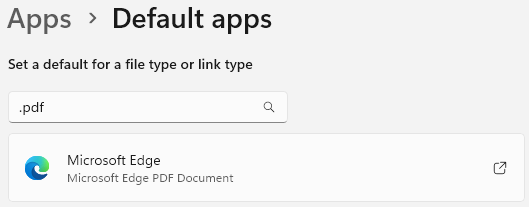
The above search reveals that PDFs are viewed in the Edge browser.
5. To change to a different app, click the new tab icon
 .
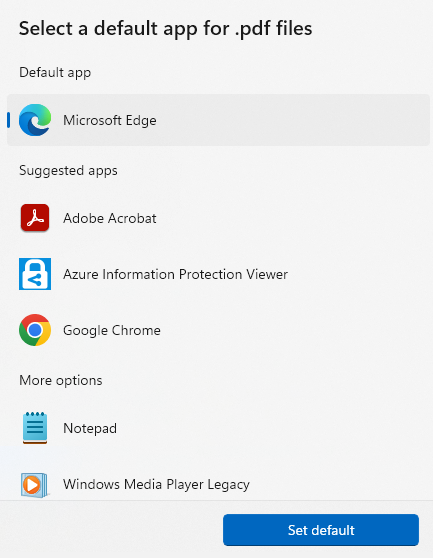
6. Select the app to use from the list, then Set default. (In this case, you would choose either Adobe Acrobat or Google Chrome.)
7. Close the settings window.
1. Press and hold the Windows logo key
 then select
the
gear icon
to
open Windows Settings.
2. Select Apps.
3. In the left side menu, click Default apps.
4. Scroll down and click Choose default apps by file type. The list of file types will take a few seconds to display.
5. Scroll down the list to the .pdf file type
on
the left side.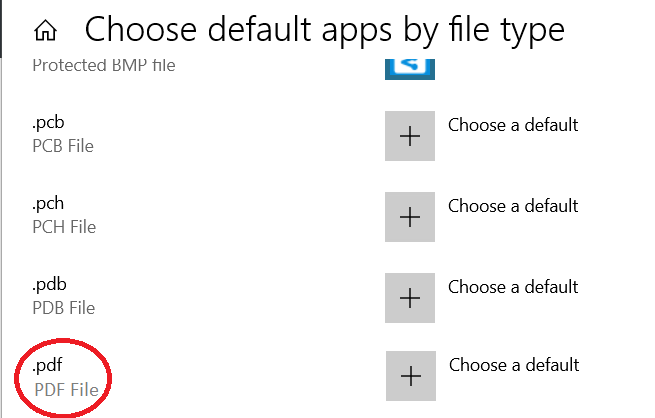
6. Click the Choose a Default and select Adobe Acrobat DC:
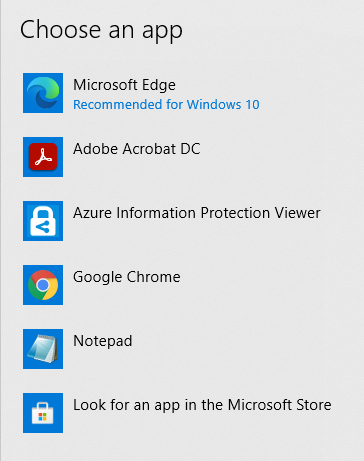
If the ERO hasn't installed Adobe Acrobat, choose their preferred web browser.
7. Close the Settings window.