The app you're trying to install isn't a Microsoft-verified app
Desktop · Written guide Content date 1 min read
When installing Tax Processors Plus Desktop, Windows might display a warning:
The app you're trying to install isn't a Microsoft-verified app.
This warning occurs when you attempt to install a non-Microsoft application on a PC running Windows in S mode. S mode is a version of Windows that only allows applications from the Microsoft Store to be installed. Some PCs come preinstalled with Windows in S mode by the original equipment manufacturer.
Installing Tax Processors Plus Desktop, as well as other non-Microsoft applications, involves switching Windows out of S mode. This is a permanent change.
To remove this warning to allow Tax Processors Plus Desktop to be installed, follow these steps:
- Right-click the Windows Start menu and choose Settings.
- Select Apps.
- Select Advanced app settings.
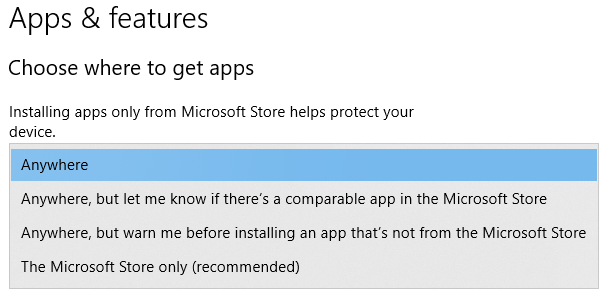
- In the drop down menu under "Choose where to get apps", select Anywhere:
- Close the Settings window.
After having done the above steps, double-click the installation file and try again.