How Does the Preparer Share Signature Documents in the Customer Portal?
Online · Written guide Content date 1 min read
The Customer Portal allows the taxpayer and the preparer to securely share documents, including documents for the tax return that need a signature.
In Tax Processors Plus Online, to be able to create a Customer Portal for a tax return, at a minimum the Basic Information section of the tax return needs to be completed, including the taxpayer's name, address, phone number, and e-mail address. From there you'll send the taxpayer an invitation to create the portal and can send documents to them any time after that. Once they create the portal, they will see any documents you've sent them.
When you have finished preparing their tax return, here's how to send the return to the taxpayer to be signed:
- Open the return
- In the left side menu click E-file
- When you arrive at the first step in the e-file process, Navigate to the Submission page.
-
Select "Send Tax Return Documents to Customer Portal":
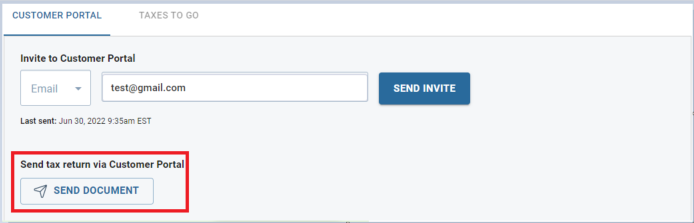
If successful, you'll see a message confirming that the documents have been shared: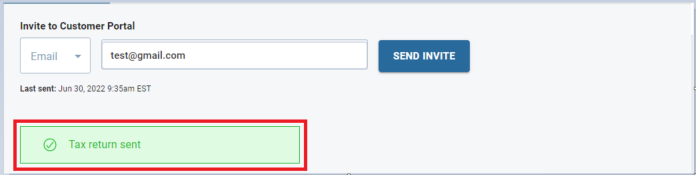
Once the signature documents have been shared, the taxpayer will be able to login to Customer Portal and sign them.
Note: For a Married Filing Joint return the link only needs to be sent once, both spouses can sign via the same portal.
Additional Information: