How Does the Taxpayer Sign Documents in Customer Portal?
Software reference · Written guide Content date 1 min read
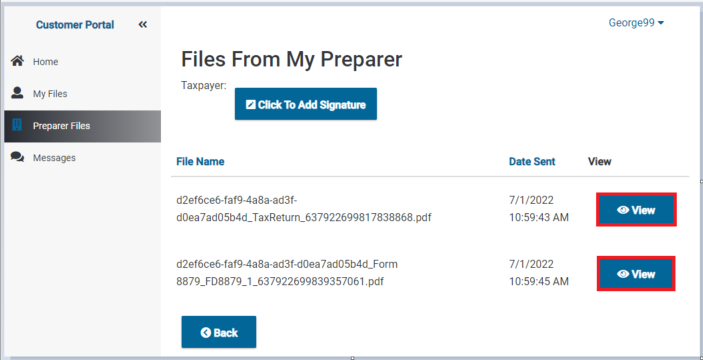
After the taxpayer has completed their registration and submitted it, and the preparer has sent documents through the Tax Processors Plus program, the Files From My Preparer Window will display the files sent from the tax preparer. To view the documents to be signed the taxpayer will click on the View button next to each document:
The document will open in a new tab in the taxpayer’s browser.
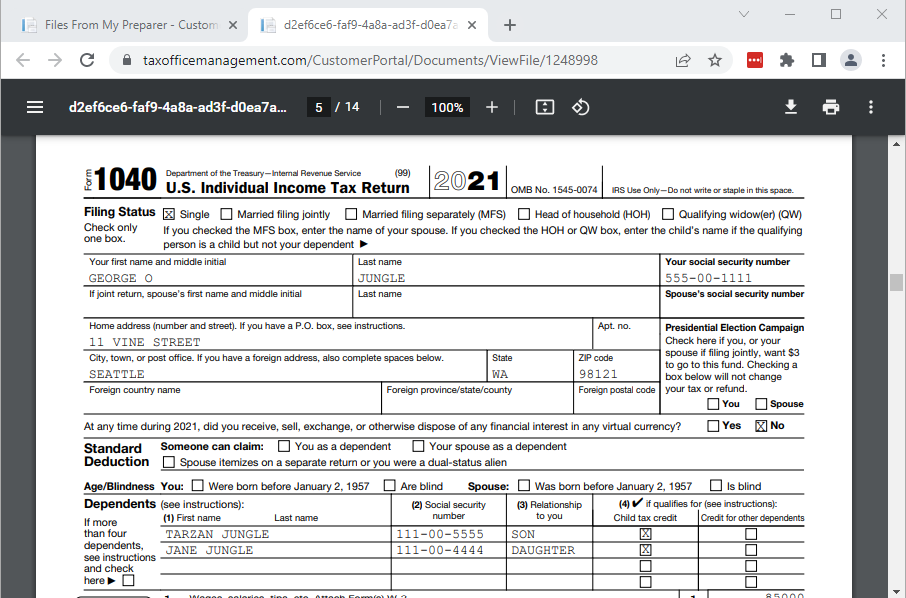
After the taxpayer has viewed the documents they will return to the Customer Portal.
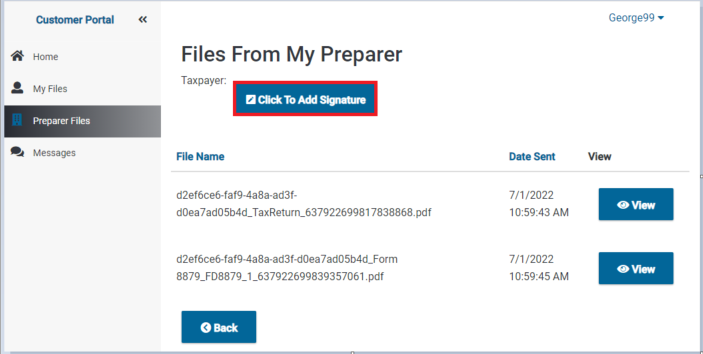
To sign the documents, the taxpayer will select the Click to Add Signature button:
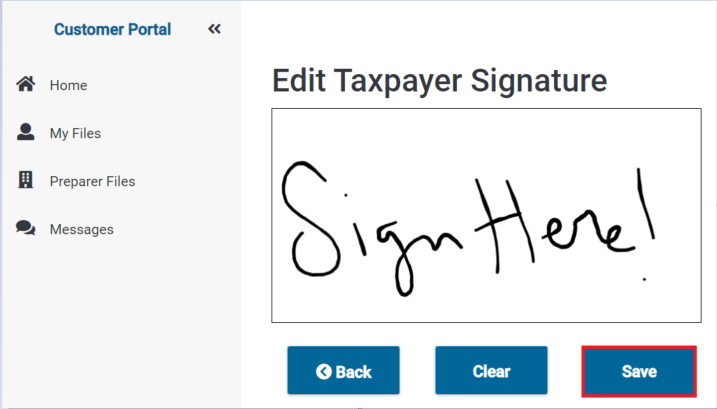
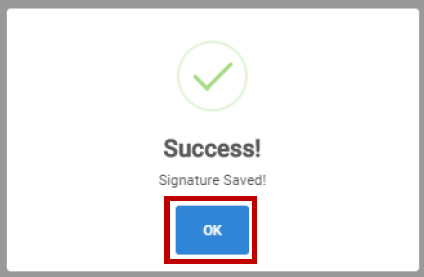
The Edit Signature Window will be displayed. The taxpayer can use their mouse to enter their electronic signature from a desktop or laptop computer or use their finger to enter their electronic signature from a mobile device. To save their signature, the taxpayer will click on the Save button:
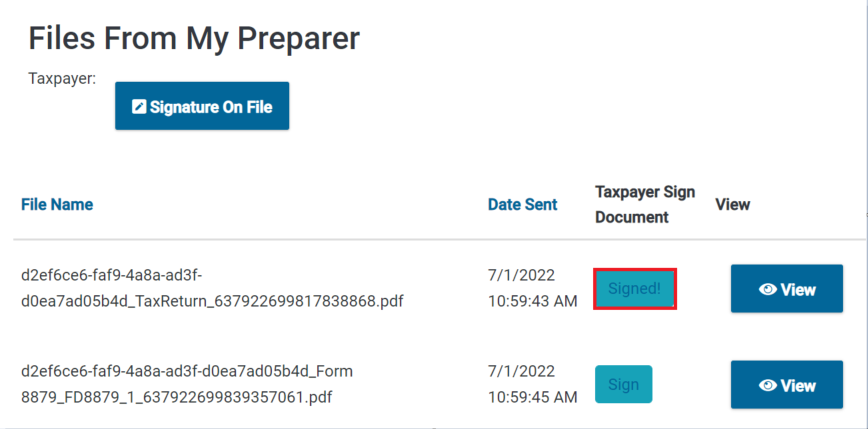
The documents will now display as Signed in the Customer Portal:
It can then be viewed and applied in the tax return by the preparer.
Additional Information: