How Does the Taxpayer Register for Customer Portal?
Software reference · Written guide Content date 1 min read
On this page
When you send your taxpayer-client a Customer Portal invitation, they will create the portal either through a text message or an e-mail, depending on how the invitation was sent.
By E-mail
If the invitation was sent by email, look for the message with the subject Your Secure Portal Has Been Created. Open the portal link in that invitation.
Illustration
The illustration for this step is not available yet. Follow the written instructions.
By Text Message
If the Customer Portal invitation was sent by text message, the taxpayer will receive a text message from a numbered sender with a link to access their portal account.
Illustration
The illustration for this step is not available yet. Follow the written instructions.
The taxpayer will need to click or touch the link they received to go to the registration page where they will create a username and password for the portal.
Note: The taxpayer must enter the same last four SSN and phone number or e-mail address that the preparer entered into the tax return in order to successfully register their account!
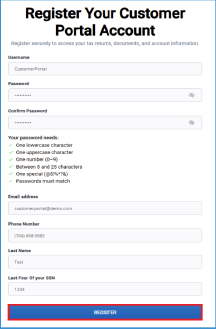
After the taxpayer clicks on the link from either their e-mail or their phone, they will be guided to a page like this. They will need to pick a username, create a password, and enter their phone, e-mail, last name, and last four digits of their SSN.
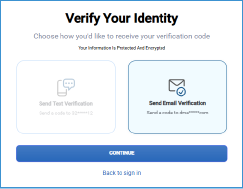
After submitting the registration, the taxpayer will be prompted to verify their account. They can select to have a verification security code sent via e-mail or text. When the code is received, the taxpayer will enter it in the space provided and click Verify:
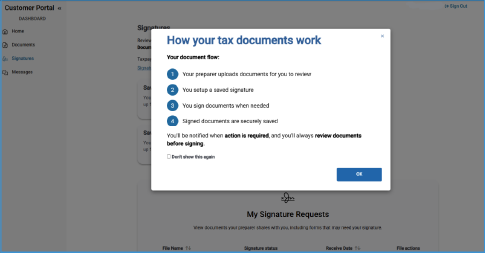
The taxpayer’s portal is displayed on the screen:
Additional Information:
Where does the taxpayer log in to their Customer Portal?