How to Add Sub Locations
Online · Written guide Content date 1 min read
On this page
1. Add the location in Account Hub
- Sign in to the company or Master EFIN Account Hub.
- Open the app switcher → Location Manager → Manage Locations → Add Location.
- Complete the required information and select Save All.
2. Add the Tax Processors Plus Online office
- Sign in at the Tax Processors Plus Online company level. From the Welcome screen, open Manage Offices → Add Office.
- Enter the required office information and save. If Manage Offices is missing, verify that you are using a company-level login.
- Select Access for the new office. On its Welcome page, open Configuration → ERO Setup.
ERO and tax-year notes
An ERO cannot be deleted after it has been added. Mark a discontinued EFIN inactive instead. Office Setup and ERO Setup information apply to all tax years.
Detailed instructions
Adding a Sub Location is a two step process. The first step is to add the location to the Company or Master EFIN's Account Hub.
To add the Location to Account Hub, from the app switcher  in the upper right select:
- Location Manager
- Manage Locations
- Add Location - Enter all required information and Save All
The new sub EFIN can now be added to the company level. From the Welcome Screen the select:
Note: If you do not see Manage Offices verify log in is at the company level.
- Manage Offices
- Add Office - Enter required information and save
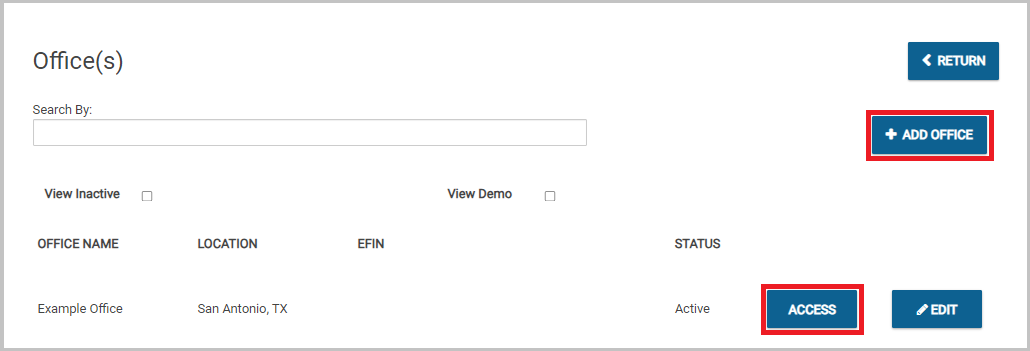
Once the office has been created the select Access. This will bring up the Office's Welcome page: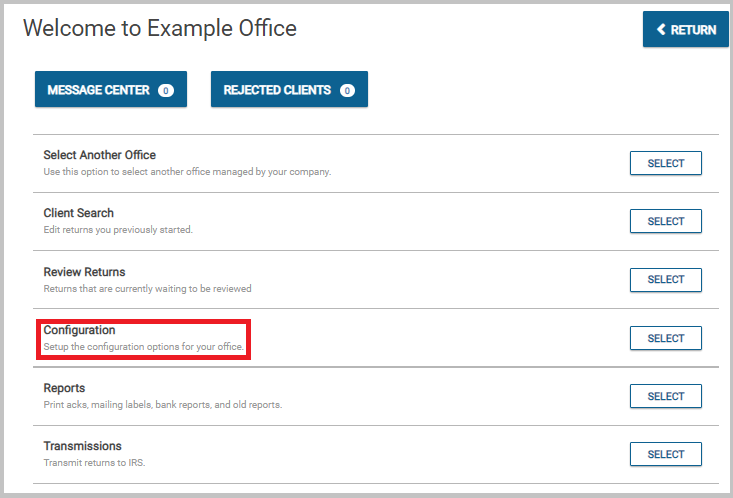
From the office Welcome page select:
- Configuration
- ERO Setup
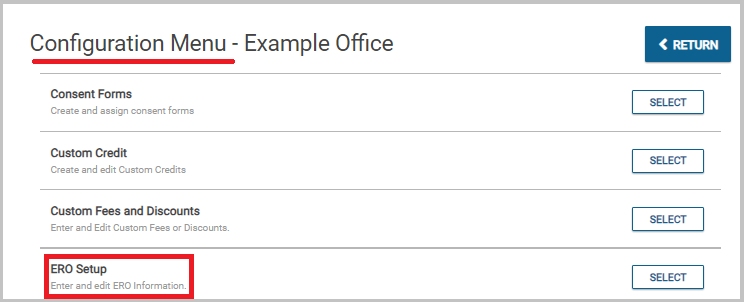
Note that once an ERO has been added to ERO Setup it cannot be deleted. Rather, if you discontinue using an EFIN you mark it as inactive.
Note: The information in Office Setup and ERO Setup apply to all tax years.